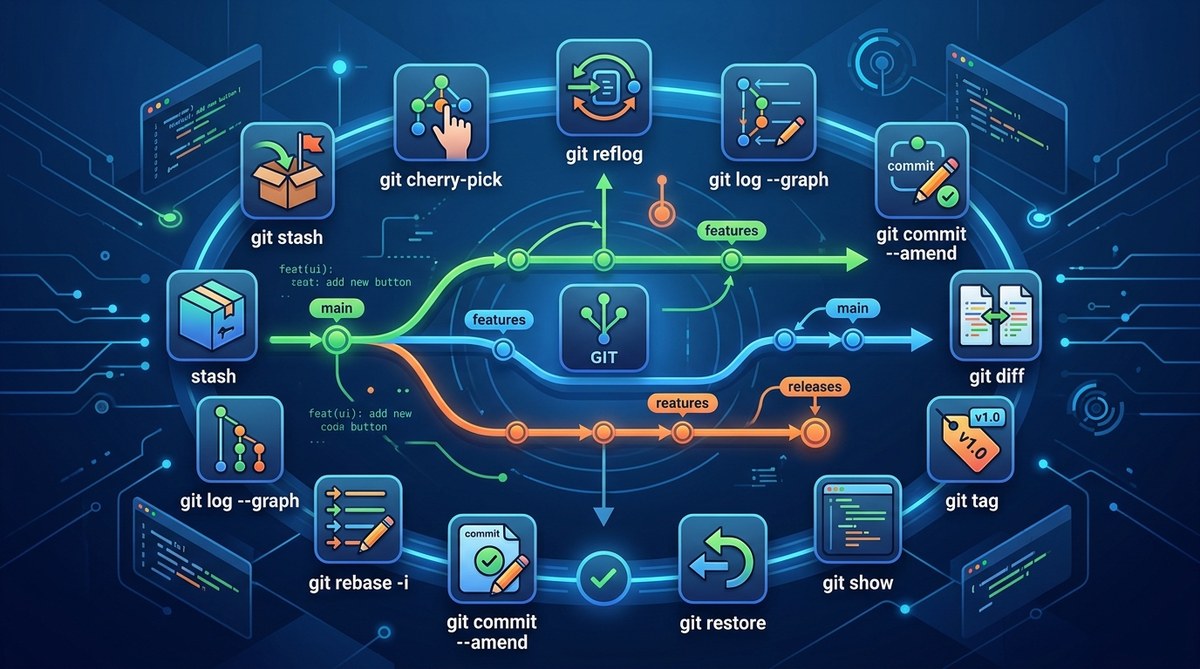
You know the usual Git workflow by heart. add, commit, push, pull, merge. It gets the job done, but it also hides a whole toolbox of commands that can save you from messy histories, accidental commits, and wasted time. Most developers never look past the basics. That is a shame, because Git has some incredible power moves that are just waiting to be used.
Mastering underused Git commands can cut your daily workflow time in half. This guide covers commands like `git worktree` for parallel branches, `git bisect` for finding bugs, `git reflog` for recovery, and more. Each command solves a real problem that the basic five commands cannot handle well. You will leave with a faster, safer Git practice.
Why Your Current Git Workflow Is Slowing You Down
If your team uses Git like a simple save button, you are missing out. The basic commands are fine for solo projects or tiny repos. But once you deal with multiple features, hotfixes, and long running branches, you start hitting friction. You stash changes, you forget what you stashed, you accidentally commit to the wrong branch, or you spend ten minutes looking for the commit that broke the build.
These problems have solutions. They are just commands you rarely see in tutorials.
The Commands That Change How You Work
Let us walk through the most practical underused Git commands. Each one targets a specific pain point.
git worktree for Working on Multiple Branches at Once
Switching branches is a pain when you have uncommitted work. You stash, switch, do your thing, switch back, and pop the stash. It is slow and you lose context.
git worktree lets you check out a branch into a separate folder. You can have two terminals open, each on a different branch, without touching your main working directory.
git worktree add ../hotfix-folder hotfix-branch
Now you can work on the hotfix in the new folder while your main folder stays on the feature branch. No stashing needed. When you are done, remove the worktree with:
git worktree remove ../hotfix-folder
This is a lifesaver during code reviews or when you need to test a bug fix without disrupting your current work.
git bisect for Finding the Exact Commit That Broke Something
You know the feeling. The app worked yesterday. Now it does not. You could manually check each commit, but that takes forever.
git bisect uses binary search to find the offending commit. It is one of the most underused Git commands for debugging.
Here is the process:
- Start the bisect session:
git bisect start - Mark the current commit as bad:
git bisect bad - Mark a known good commit:
git bisect good <commit-hash> - Git checks out a commit halfway between good and bad.
- Test the code. If it works, run
git bisect good. If it is broken, rungit bisect bad. - Repeat until Git identifies the first bad commit.
You can also automate this with git bisect run if you have a test script. Just pass the script name and Git runs it on each commit automatically.
Expert advice: Write a simple shell script that returns 0 for good and 1 for bad. Then run
git bisect run ./test-script.sh. Walk away and grab coffee. When you come back, Git will tell you exactly which commit introduced the bug.
git reflog for Undoing Almost Anything
Think of git reflog as your safety net. It records every movement of HEAD, including resets, rebases, and amendments. If you mess up a rebase or accidentally delete a branch, git reflog can save you.
Run it to see a list of recent actions:
git reflog
You will see output like:
abc1234 HEAD@{0}: commit: fixed typo in config
def5678 HEAD@{1}: reset: moving to HEAD~2
ghi9012 HEAD@{2}: commit: added new feature
To undo a mistake, just reset to the state before it happened. For example, if a reset went too far, do:
git reset --hard HEAD@{1}
This command is not for everyday use, but when you need it, it is a lifesaver. It is the single most important underused Git command for recovery.
git stash with a Name (And Other Stash Tricks)
You probably use git stash already. But do you name your stashes? Without a name, you end up with a list of anonymous stashes that all look the same.
git stash push -m "WIP: refactoring auth module before hotfix"
Now when you run git stash list, you see:
stash@{0}: On main: WIP: refactoring auth module before hotfix
You can also apply a specific stash without popping it:
git stash apply stash@{1}
And if you want to turn a stash into a branch (useful when you realize a stash deserves its own branch), run:
git stash branch new-feature-branch stash@{0}
This creates a new branch, applies the stash, and drops it.
git log with Real Filtering
Most people run git log and get a wall of text. That is not useful. The underused Git commands for logging are the flags that filter and format the output.
Try these:
git log --oneline --graph --allgives you a visual tree of all branches.git log --author="yourname" --since="2 weeks ago"shows only your recent commits.git log -p -- filenameshows the patch history for a single file.
You can also create an alias in your Git config to save typing:
git config --global alias.tree "log --oneline --graph --all --decorate"
Now git tree gives you a clean branch graph.
git clean for Removing Untracked Files
Untracked files pile up. Build artifacts, temp files, logs. They clutter your working directory and can cause weird build issues.
git clean removes them. Use it carefully.
git clean -n
The -n flag does a dry run. It shows you what would be deleted without actually deleting anything. When you are sure, run:
git clean -f
Add -d to remove untracked directories too:
git clean -fd
This is perfect for cleaning up after a failed build or a generated file that should not be there.
git diff with Context and Staged Changes
You know git diff, but do you know git diff --cached? That one shows only the changes that are staged for commit. It is great for reviewing what you are about to commit before you write the message.
git diff --cached
You can also compare branches directly:
git diff main..feature-branch
And if you want to see just the names of changed files, add --name-only:
git diff --name-only main..feature-branch
This helps you spot if a file was changed by accident.
git commit --fixup for Cleaner Rebase Workflows
You made a commit. Then you found a typo. You could make a new commit called “fix typo”, but that pollutes the history.
Instead, use --fixup:
git commit --fixup <commit-hash-of-original-commit>
This creates a special commit that is marked as a fix for the original. Later, when you run git rebase -i --autosquash, Git automatically merges the fixup commit into the original commit and keeps the history clean.
This is one of those underused Git commands that your future self will thank you for.
Common Mistakes and How These Commands Fix Them
Here is a table that maps common Git problems to the commands that solve them.
| Mistake | Typical Workaround | Better Command |
|---|---|---|
| Need to work on two branches at once | Stash and switch constantly | git worktree |
| A bug appeared and you don’t know when | Manually check commits | git bisect |
| You accidentally reset too far | Panic | git reflog |
| Stash list is a mess of unnamed entries | Guess which stash is which | git stash push -m "message" |
| Build artifacts clutter your directory | Ignore them and hope | git clean -fd |
| You want to review staged changes | Blindly commit | git diff --cached |
| You need to fix a typo in an old commit | Make a new ugly commit | git commit --fixup + rebase |
How to Start Using These Commands Today
You do not need to learn all of them at once. Pick one that solves your biggest pain point right now.
- If you often switch branches, start with
git worktree. Create a separate folder for your next hotfix. - If you debug regressions often, learn
git bisect. Write a test script and automate it. - If you have ever lost work, memorize
git reflog. It is your undo button for Git. - If your commit history is messy, try
git commit --fixupon your next pull request.
Each command pays for itself the first time you use it.
The Commands You Should Never Ignore Again
Git is not just about saving code. It is about managing complexity. The underused Git commands in this article are the ones that turn a frustrating workflow into a smooth one. They save minutes per day, which adds up to hours per month.
Start small. Pick one command from this list and use it this week. Next week, add another. By the end of the month, your Git workflow will be faster, safer, and a lot less stressful. And when a teammate asks how you fixed that bug so fast, you will know exactly what to tell them.
For more ways to level up your development toolkit, check out our guide on top dev tools every programmer should master in 2026. It pairs nicely with these commands.